Remote by Hand is a TV remote for Apple Watch and iPhone. Lean your wrist to move around the screen, or press the buttons. It works with Android TV and LG webOS over your home Wi-Fi: no cloud, no account.
Tilt your wrist and hold it for a moment: left, right, up or down. The remote moves one step for each lean, so the cursor does not run away. If you prefer to keep moving while you hold, switch on auto-repeat in the watch settings.
The watch measures from where your arm is when you open the app, and you can set a level pose in its settings.
Buttons when you want them
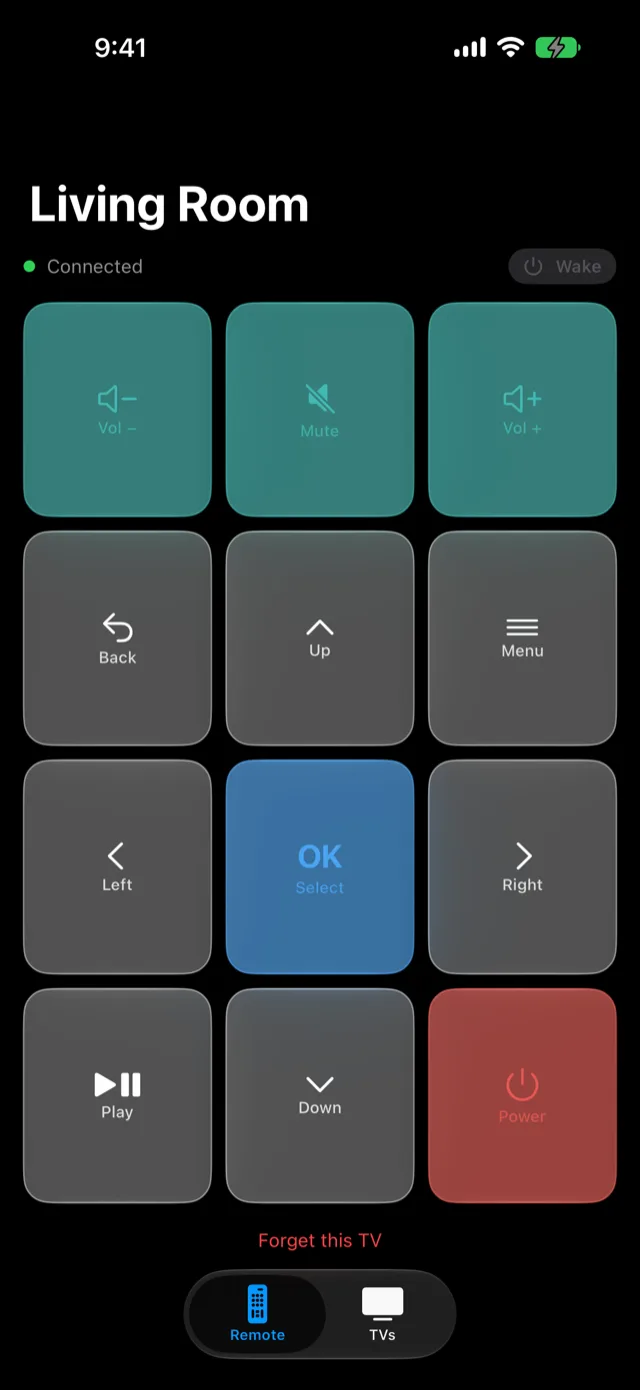
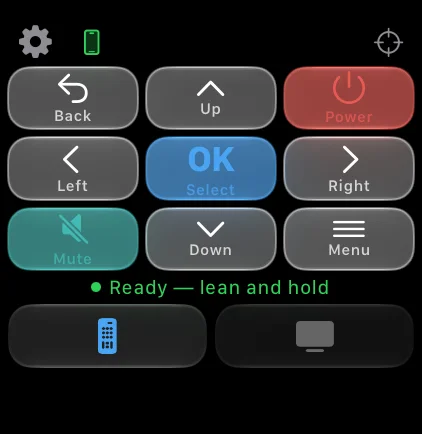
Every key is also a button, on the watch and on the iPhone: directions, OK, back, menu, play and pause, mute, power, and volume on the Digital Crown. Gestures never replace the buttons, so the remote still works when a lean is not what you want.
On watches that support Double Tap, the pinch gesture presses OK.
Say it to Siri
Siri and Shortcuts can press any key, repeat it (“left 5 times”) and switch a TV on by name. The app name is part of every phrase, which is how Siri knows which app you mean.
Several TVs, one remote
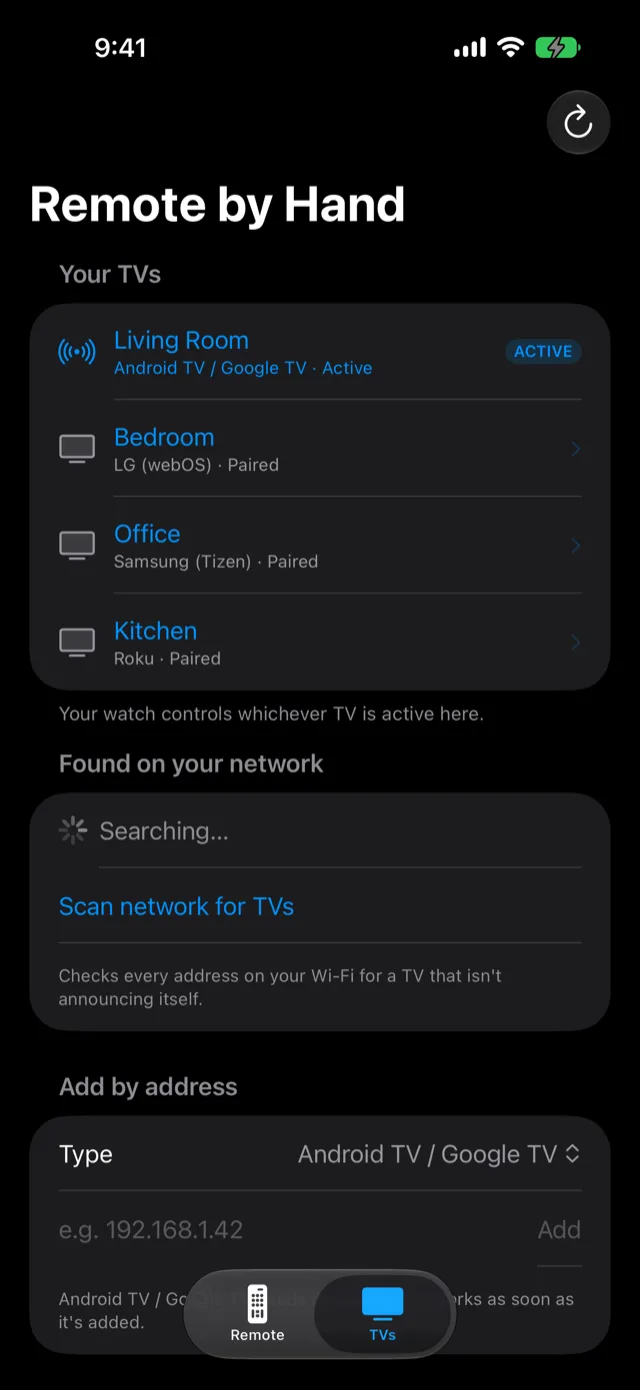
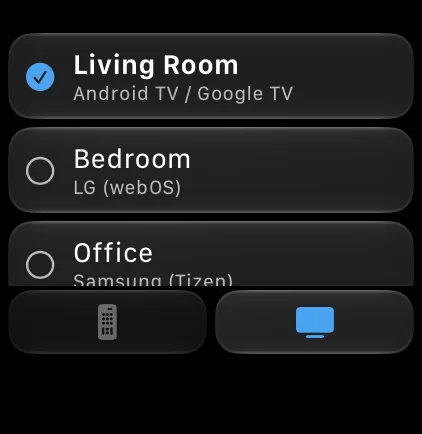
Pair as many TVs as you like and switch between them from the watch or the iPhone. A TV that is off can be switched on from the app when the set allows it: through HomeKit if the TV is in your Home, otherwise by Wake-on-LAN, which needs the TV’s own “turn on via Wi-Fi” setting.
Private by design
The iPhone talks to your TV over the local network and nothing else. There is no cloud, no account, no analytics and no tracking. Motion data stays on the watch.
The remote: a TV, its connection state and every key.Your TVs. The one marked active is the one the watch controls.
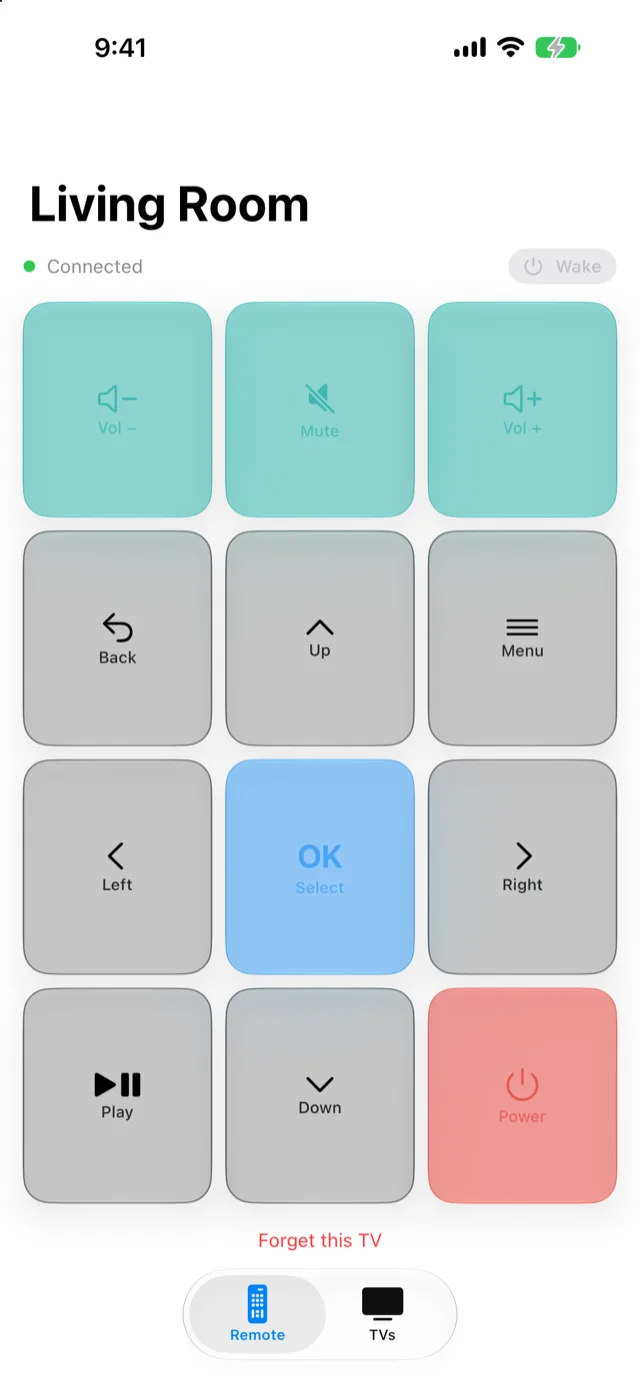
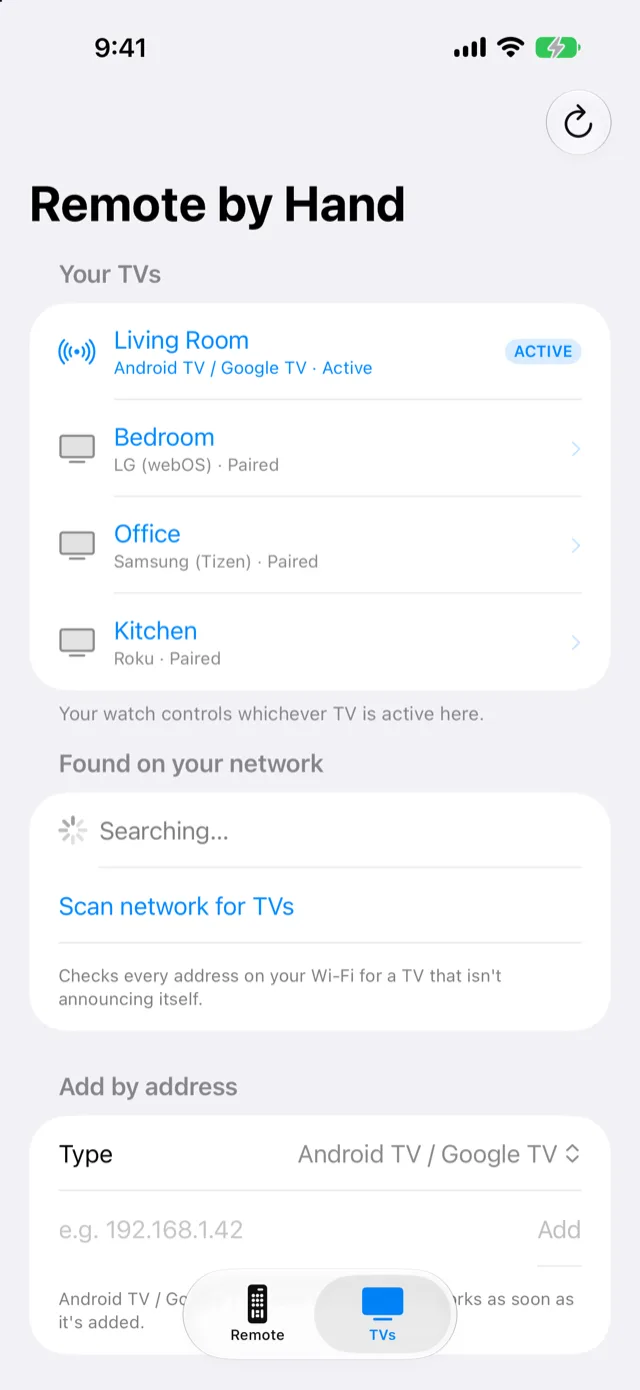
The same remote in light mode.Your TVs in light mode.
Apple Watch
The watch remote. The line under the keys says when a lean will be recognised.Switch TVs from the wrist.
TV names in the screenshots are sample data. Screenshots from an iPhone in dark and light mode and an Apple Watch Ultra. The iPhone app follows the system theme.
How to set it up
1. Install the iPhone app
Install Remote by Hand on your iPhone. The Apple Watch app comes with it and appears on the watch.
2. Allow the local network
Open the app and allow local network access, so it can find the TV on your Wi-Fi. The iPhone and the TV must be on the same network.
3. Add and pair your TV
Pick the TV in the TVs tab. For Android TV or Google TV, type the PIN the TV shows. For LG webOS, accept the prompt on the TV.
4. Open the watch app
Raise your wrist and open Remote by Hand. Keep your arm still for a moment while it learns where level is.
5. Lean and hold
Lean your wrist left, right, up or down and hold briefly to move one step, press OK with Double Tap, or use the buttons.
Gestures, keys and voice
Lean left, right, up, down
Moves the cursor one step per lean. Hold to repeat is optional.
Double Tap
Presses OK on watches that support the system Double Tap gesture.
Digital Crown
Volume up and down.
Buttons
Up, down, left, right, OK, back, menu, play and pause, mute and power, on the watch and on the iPhone.
Siri
“Remote by Hand left”, “OK 2 times”, “volume up”, “turn on the living room TV”. Menu, mute and power through “Remote by Hand button”.
Settings
Lean angle, hold time, auto-repeat, return pause, level pose and keep-screen-awake, all on the watch.
Supported TVs
Android TV, Google TV
Tested on a real TV. Pair with the PIN the TV shows. Found automatically on the network.
LG webOS
Tested on a real TV. Pair by accepting the prompt on the TV. Found automatically on the network.
Samsung Tizen
Experimental. Built in, not yet tested on a real TV.
Roku
Experimental. Built in, not yet tested on a real TV. Added by IP address, no pairing.
Apple TV, Fire TV
Not supported.
Details
Works with
Android TV and Google TV (pair with the PIN the TV shows), and LG webOS (accept the prompt on the TV). Both have been tested on real TVs.
Experimental
Samsung (Tizen) and Roku are built in but have not been tested on a real set yet.
Not supported
Apple TV and Fire TV.
Connection
Your iPhone and the TV on the same Wi-Fi. The watch sends to the iPhone, and the iPhone app sends to the TV.
Controls
Direction keys, OK, back, menu, play and pause, mute, power and volume. Wrist leans for the four directions. Settings for lean angle, hold time and auto-repeat.
Voice
Siri and the Shortcuts app, including “left 5 times” and switching a named TV on.
Works on
iPhone and iPad on iOS and iPadOS 17 or later, and Apple Watch on watchOS 10 or later. Double Tap needs a watch that supports it.
Permissions
Local network, to find and control TVs. Motion on the watch, for the lean gestures. HomeKit, only to switch a TV on that is already in your Home.
Price
Announced at launch. Coming to the App Store.
Also written as
Remote by Hand by 278labs, RemoteByHand, Remote By Hand, Apple Watch TV remote, wrist TV remote.
Last updated
Languages
English.
Privacy
No data is collected. No analytics or tracking SDK.
Remote by Hand is an independent app by 278labs. It is not made, sponsored or endorsed by Apple, Google, LG, Samsung or Roku. Android TV, Google TV, webOS, Tizen and Roku are trademarks of their owners.
Questions
What is Remote by Hand?
A TV remote for Apple Watch and iPhone. On the watch you lean your wrist to move around the TV screen, and every key is also a button. The iPhone holds the connection to the TV.
Is there an Apple Watch TV remote that works with gestures?
Yes. In Remote by Hand you lean your wrist left, right, up or down and hold for a moment, and the TV cursor moves one step. The watch measures the lean from where your arm is when the app opens, so you do not have to hold it in a fixed pose.
Which TVs does it work with?
Android TV and Google TV, and LG webOS. Samsung (Tizen) and Roku are built in but have not been tested on a real set yet, so treat them as experimental. Apple TV and Fire TV are not supported.
Does it work with Apple TV?
No. Apple TV is not supported. Remote by Hand controls Android TV, Google TV and LG webOS sets, and has experimental support for Samsung Tizen and Roku.
Can I control a Samsung or Roku TV?
The drivers for Samsung (Tizen) and Roku are built in, but they have only been tested against scripted exchanges, not a real TV. They may work, but treat them as experimental.
Does it need an account or the cloud?
No. The iPhone talks to the TV over your home Wi-Fi. There is no account, no cloud service, and the app has no analytics or tracking.
Can I use it without an Apple Watch?
Yes. The iPhone and iPad app is a full remote with its own buttons and Siri commands. The watch adds the wrist gestures.
Does the watch need the iPhone nearby?
Yes. watchOS apps cannot open the network connections these TVs use, so the watch sends each key to the iPhone and the iPhone sends it to the TV. The iPhone only needs to be in range, it does not need to be in your hand.
Can I turn the TV on with it?
Often. If the TV is in your Home app, Remote by Hand switches it on through HomeKit. Otherwise it sends a Wake-on-LAN signal, which needs the TV's own setting for turning on over Wi-Fi. A TV that is completely powered down cannot be woken by any network remote.
Which Siri commands work?
Say the app name and a key: “Remote by Hand left”, “OK”, “back”, “play”, “volume up”. Add a count to repeat a key, for example “left 5 times”, and say “turn on the living room TV” to switch a named TV on. Menu, mute and power are available through “Remote by Hand button” and in the Shortcuts app.
Does it drain the Apple Watch battery?
The watch reads its motion sensors only while the app is on screen, and stops when you lower your wrist or leave the app. To keep the screen on while you use gestures, the app holds a watchOS extended runtime session, and releases it after a minute without a command. You can turn this off in the watch settings.
Is it safe, and what data does it collect?
It collects no data. Motion data is processed on the watch and never stored or sent. The app talks only to your TV on the local network, and the TV credentials stay on your devices.
How much does it cost and when is it available?
Remote by Hand is coming to the App Store. The price is announced at launch.